阅读 Skeleton.css 源码,改善睡眠质量(尽管它只有 419 行代码)
本文介绍点赞就等于学会了!如果本文对您有帮助,建议点赞收藏(点赞就等于学会了)Skeleton源码一共只有419行(加上注释和换行),非常适合用来学习。本文是根据我的学习过程来编写的,几乎每个章节都包

本文介绍
点赞就等于学会了!
如果本文对您有帮助,建议点赞收藏(点赞就等于学会了)
Skeleton 源码一共只有 419 行(加上注释和换行),非常适合用来学习。
本文是根据我的学习过程来编写的,几乎每个章节都包含 使用方法 和 源码分析。
虽然现在大部分业务都不需要重复造轮子了,但对于小白来说,学习完 Skeleton 源码 是能走出新手村的。
本文不是推荐大家使用 Skeleton.css ,因为现代工程其实已经用不上这个库了。本文的重点在 响应式布局源码的解读。
本文适合人群:
-
有
css基础的(了解浮动、颜色、背景色等); -
有一定工作经验,但又没了解过
css库是如何生成的;
Skeleton 介绍
如果您正在着手一个较小的项目,或者觉得不太需要用到大型框架,那么可以尝试使用 Skeleton。
Skeleton 仅对少数标准 HTML 元素设置了样式,并提供了一个网格系统。
也可以直接滑到文末获取 Skeleton 源码。
读 css 方面的源码,为什么要选 Skeleton ?
-
Bootstrap:太长,不看! -
Layui:太长,不看! -
Element ui:和框架绑定的,不适合小白看~ -
Animate.css:动画库,下次再看。 -
……
-
Skeleton:短!
功能目录
出发!!!
本文所有例子都使用 CDN 的方式引入 skeleton.css ,默认已经引入了,所以在案例中不会再出现引入的代码。
<link href="https://cdn.bootcdn.net/ajax/libs/skeleton/2.0.4/skeleton.css" rel="stylesheet">
网格系统 Grid<a name=”Grid”></a>
Skeleton 提供了 12 列 的网格布局模式,和现代 UI 库的 24 列相比,12 列的确有点少了。但这并不影响我们学习。
Skeleton 支持 指定值布局 和 比例布局,这两个名字是我自己起的,官方没这样说。
其实这两种布局方式都是大同小异的,只不过语义上有点不同而已。
使用方法
指定值布局
通过使用 1~12 的单词配合 .columns 类名 进行布局。
.one、.two、.three、.four、.five、.six、.seven、.eight、.nine、.ten、.eleven、.twelve
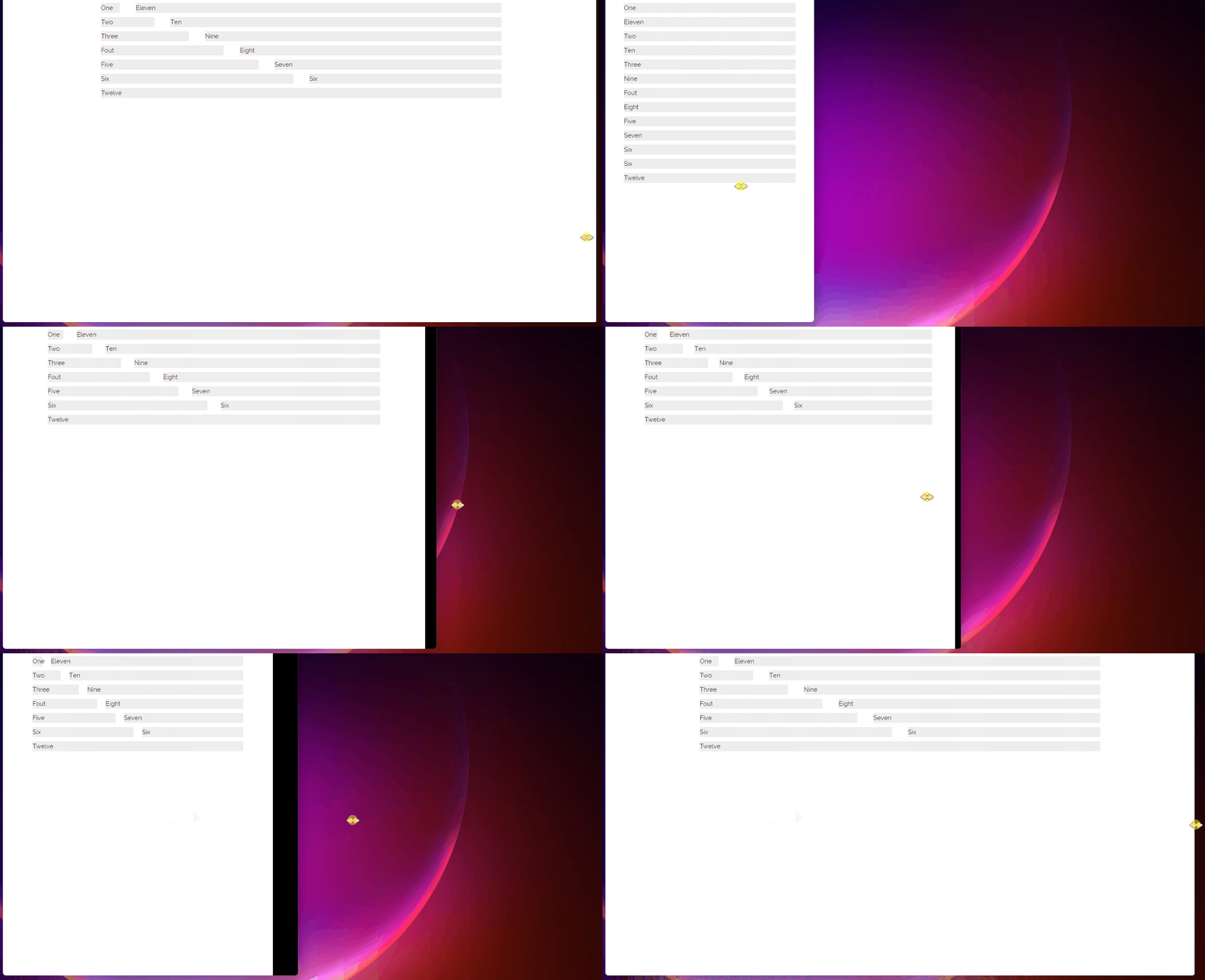
Skeleton.css 提供了 12 列的响应式网格布局,随着浏览器/设备尺寸的减小而缩小。
当浏览器窗口小于 550px 时,所有列都会占满整行。
<div class="container">
  <div class="row">
    <div class="one column">One</div>
    <div class="eleven columns">Eleven</div>
  </div>


  <div class="row">
    <div class="two columns">Two</div>
    <div class="ten columns">Ten</div>
  </div>


  <div class="row">
    <div class="three columns">Three</div>
    <div class="nine columns">Nine</div>
  </div>


  <div class="row">
    <div class="four columns">Fout</div>
    <div class="eight columns">Eight</div>
  </div>


  <div class="row">
    <div class="five columns">Five</div>
    <div class="seven columns">Seven</div>
  </div>


  <div class="row">
    <div class="six columns">Six</div>
    <div class="six columns">Six</div>
  </div>


  <div class="row">
    <div class="twelve columns">Twelve</div>
  </div>
</div>


<style>
  .row .column,
  .row .columns {
    margin-bottom: 10px;
    background: #eee;
  }
</style>
本例使用了 .container 作为容器,限制了最大宽度是 980px ,并且水平居中。
因为布局容器是不提供背景和外边距等样式,所以本例写了一个背景色给 .columns 以便观察。
.row 这个其实不需要加的,本例添加这个类只是希望代码看起来能更加易读。
比例布局
提供了 3 个类名,需要配合 .column 使用。
-
.one-third:三分之一 -
.two-thirds:三分之二 -
.one-half:一半

<div class="container">
  <div class="row">
    <div class="one-third column">1/3</div>
    <div class="two-thirds column">2/3</div>
  </div>


  <div class="row">
    <div class="one-half column">1/2</div>
    <div class="one-half column">1/2</div>
  </div>
</div>


<style>
  .row .column,
  .row .columns {
    margin-bottom: 10px;
    background: #eee;
  }
</style>
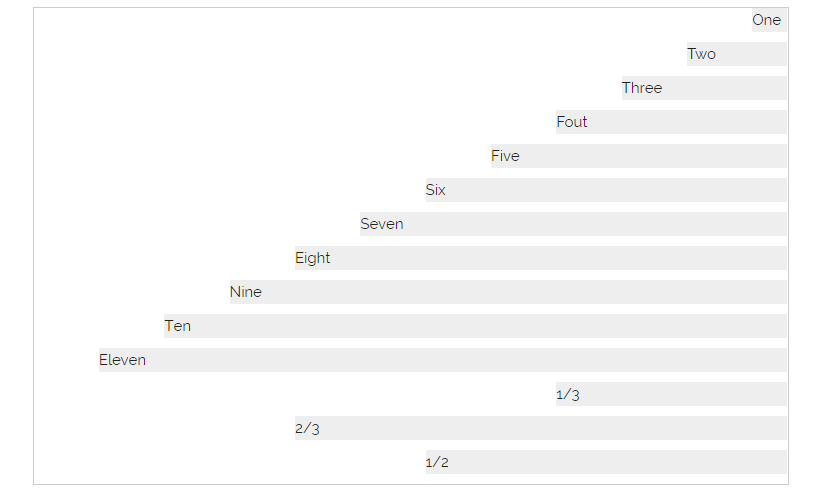
列偏移
<div class="container">
  <div class="row">
    <div class="offset-by-eleven one columns">One</div>
  </div>


  <div class="row">
    <div class="offset-by-ten two columns">Two</div>
  </div>


  <div class="row">
    <div class="offset-by-nine three columns">Three</div>
  </div>


  <div class="row">
    <div class="offset-by-eight four columns">Fout</div>
  </div>


  <div class="row">
    <div class="offset-by-seven five columns">Five</div>
  </div>


  <div class="row">
    <div class="offset-by-six six columns">Six</div>
  </div>
  <div class="row">
    <div class="offset-by-five seven columns">Seven</div>
  </div>


  <div class="row">
    <div class="offset-by-four eight columns">Eight</div>
  </div>


  <div class="row">
    <div class="offset-by-three nine columns">Nine</div>
  </div>


  <div class="row">
    <div class="offset-by-two ten columns">Ten</div>
  </div>


  <div class="row">
    <div class="offset-by-one eleven columns">Eleven</div>
  </div>


  <div class="row">
    <div class="offset-by-two-thirds one-third column">1/3</div>
  </div>


  <div class="row">
    <div class="offset-by-one-third two-thirds column">2/3</div>
  </div>


  <div class="row">
    <div class="offset-by-one-half one-half column">1/2</div>
  </div>
</div>


<style>
  .container {
    border: 1px solid #ccc;
  }
  .row .column,
  .row .columns {
    margin-bottom: 10px;
    background: #eee;
  }
</style>
源码分析
布局其实分了几个部分:
-
容器部分
-
列(确定值)
-
列(百分比)
-
列间距
-
列偏移
容器部分
.container {
  position: relative;  /* 相对定位 */
  width: 100%;  /* 容器宽度100% */
  max-width: 960px;  /* 但最大宽度不超过980px */
  margin: 0 auto;  /* 水平居中 */
  padding: 0 20px;  /* 容器左右内边距20px */
  box-sizing: border-box; /* 设置容器盒模型,设置了容器的边框、内边距都不会超过容器宽度 */
}


/* 当容器不小于400px时 */
@media (min-width: 400px) {
  .container {
    width: 85%;  /* 宽度为85% */
    padding: 0;  /* 内边距为0 */
  }
}


/* 当容器不小于550px时 */
@media (min-width: 550px) {
  .container {
    width: 80%;  /* 宽度80,同时padding受到 @media (min-width: 400px) 里设置的影响 */
  }
}


.container:after {
  content: "";
  display: table;
  clear: both;  /* 清除浮动 */
}
容器使用了 container 这个类名,可以看出 skeleton 是先写了小屏的解决方案,然后再写大屏的。
-
默认情况下(文档宽度小于
400px),container容器的宽度是100%,最大宽度是980px,通过margin: 0 auto;实现了水平居中效果。 -
当文档宽度大于等于
400px时,容器宽度变成85%,但也会被最大宽度(980px)限制,同时内边距设为0。 -
当文档宽度大于等于
550px时,容器宽度变成80%,会覆盖@media (min-width: 400px)里设置的宽度,但会受到@media (min-width: 400px)里设置的padding影响。 -
最后设置了一个伪元素
:after清除浮动(clear: both;)。
列布局(响应式的开始)
Skeleton.css 使用 浮动 + 百分比 的方式实现响应式。
列(确定值 )、**列(百分比)**和 列间距 这三个要放在一起讲。
skeleton 一共有 12 列布局,所以配置了基本的:one、two、three、four、five、six、seven、eight、nine、ten、eleven、twelve。
都是基础的数字英文,我就不翻译了。
这里要分 2 种情况来讨论,
-
能整除 12 的(one、two、three、four、six、twelve)
-
不能整除 12 的(five、seven、eight、nine、then、eleven)
接下来会分开讨论这两种情况。
.column,
.columns {
  width: 100%;  /* 所有列的宽度都是100%。 */
  float: left;  /* 左浮动 */
  box-sizing: border-box;  /* 设置容器盒模型,设置了容器的边框、内边距都不会超过容器宽度 */
}


@media (min-width: 550px) {
  .column,
  .columns {
    margin-left: 4%;  /* 左边距4% */
   }
  .column:first-child,
  .columns:first-child {
    margin-left: 0;  /* 第一个元素不需要左边距,所以设为0 */
   }


  .one.column,
  .one.columns                    { width: 4.66666666667%; }
  .two.columns                    { width: 13.3333333333%; }
  .three.columns                  { width: 22%;            }
  .four.columns                   { width: 30.6666666667%; }
  .five.columns                   { width: 39.3333333333%; }
  .six.columns                    { width: 48%;            }
  .seven.columns                  { width: 56.6666666667%; }
  .eight.columns                  { width: 65.3333333333%; }
  .nine.columns                   { width: 74.0%;          }
  .ten.columns                    { width: 82.6666666667%; }
  .eleven.columns                 { width: 91.3333333333%; }
  .twelve.columns                 { width: 100%; margin-left: 0; }  /* 只有一列,不需要左边距了 */


  /* 1/3,对应 .four */
  .one-third.column               { width: 30.6666666667%; }

  /* 2/3,对应 .eight */
  .two-thirds.column              { width: 65.3333333333%; }


  /* 1/2,对应 .six */
  .one-half.column                { width: 48%; }
}
-
默认情况下(文档宽度小于
550px)所有列的宽度都是100%。 -
除了第一列,后面跟着的列都有一个
4%的左边距。
能整除 12 的
.one、.two、.three、.four、.six、.twelve
布局方式如下图所示(本文只详细讲 .one 和 .two 两种列,其他的原理都是一样的,自己推算就行了)
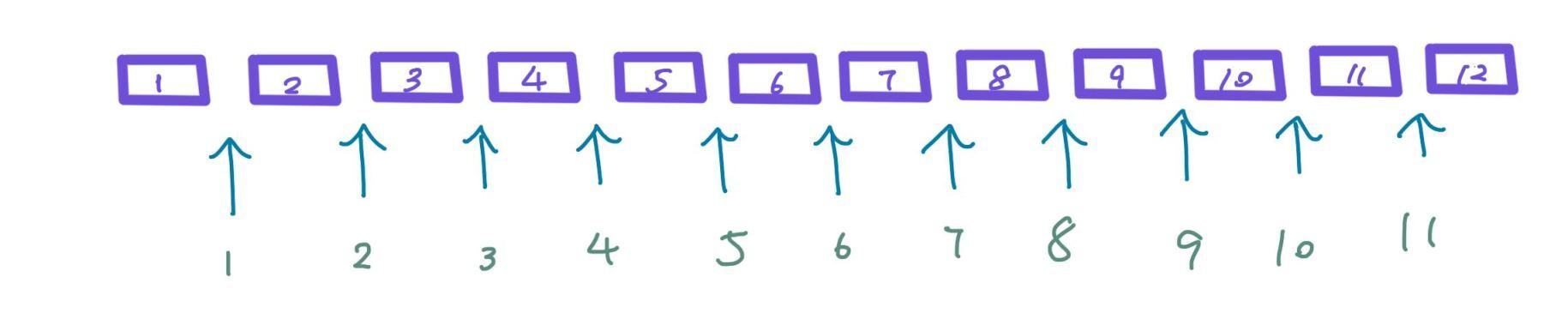
从上图可以看出,都使用 .one 的话,一共有 12 列 、11 个间隔 ,一行的宽度是 100% ,每个间隔的占比是 4% ,11 个间隔一共就花掉了 44% ,剩下 56% 给 12 列平均分。
所以 .one 的宽度就是 56 ÷ 12 ≈ 4.66666666667 ,单位是 %
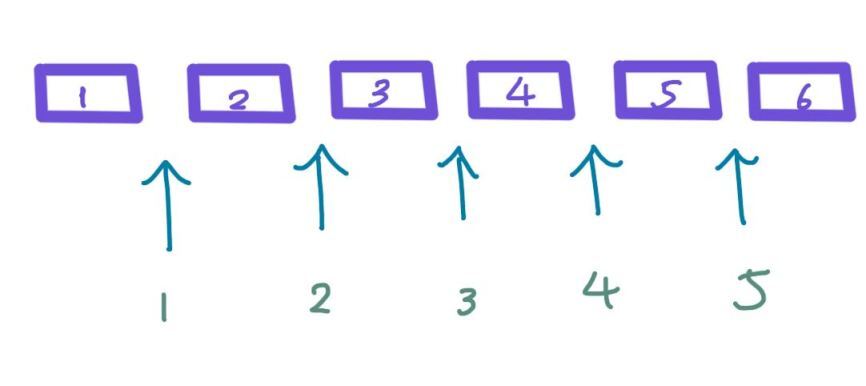
都用.two 的话,从上图可以看出一共有 6 列 、5 个间隔 ,每个间隔的宽度是 4%,5 个间隔合计占用 20% 的宽度,剩下 80% 的宽度给 6 列平均分。
**所以 .two 的宽度就是 80 ÷ 6 ≈ 13.3333333333 ,单位是 % **
剩下的我就直接写公式了,不懂的可以在评论区讨论~
公式:(100% – 间隔数量 × 4%) ÷ 列的数量
-
.one:(100% - 4% × 11) ÷ 12 ≈ 4.66666666667% -
.two:(100% - 4% × 5) ÷ 6 ≈ 13.3333333333% -
.three:(100% - 4% × 3) ÷ 4 = 22% -
.four:(100% – 4% × 2 ) ÷ 3 ≈ 30.6666666667% -
.six:(100% - 4% × 1) ÷ 2 = 48% -
.twelve:就是 100%咯,而且不需要左边距
不能整除 12 的
.five、.seven、.eight、.nine、.then、.eleven
首先看 .five ,代表 5,12 – 5 = 7,但现在 .five 和 .seven 的值是多少我们都不知道,虽然可以按 5:7 再加一个 间隔(4%) 来计算,但我更愿意使用已知的值来推算。
.two + .five + .five 三列加起来刚好是 12 ,而 .two 的值我们是知道的,由此可以得到一个代数式:
13.3333333333% + 间隔 + .five + 间隔 + .five = 100%
间隔 的占比是 4% 所以得到下面的代数式
13.3333333333% + 4% + .five + 4% + .five = 100%
21.3333333333% + 2(.five) = 100%
2(.five) = 78.6666666667%
.five ≈ 39.3333333333%
根据上面的小学生推导法,得知一个 .five 是 39.3333333333%
.seven
刚刚有讲到,5 + 7 = 12,那现在 5 出来了,7 也就通过加减法能算出来
.five + 间隔 + .seven = 100%
39.3333333333% + 4% + .seven = 100%
.seven = 100% – 39.3333333333% – 4%
.seven = 56.6666666667%
综上所述,.seven 的宽度是 56.6666666667%
这是我的推导方式,最后的值也和 skeleton 的值一样。.eight、.nine、.then、.eleven 的推导方式其实也和上面一样,这里我就不再啰嗦了。有疑问的可以在评论区交流。
最后得出
-
.five:39.3333333333% -
.seven:56.6666666667% -
.eight:65.3333333333% -
.nine:74.0% -
.ten:82.6666666667% -
.eleven:91.3333333333%
比例
-
.one-third:三分之一。对应.four -
.two-thirds:三分之二。对应.eight -
.one-half:一半。对应.six
列偏移
列偏移的类名都是 .offset-by- 开头的,后面再加上对应的数字或者比例的单词。
@media (min-width: 550px) {
  .offset-by-one.column,
  .offset-by-one.columns          { margin-left: 8.66666666667%; }
  .offset-by-two.column,
  .offset-by-two.columns          { margin-left: 17.3333333333%; }
  .offset-by-three.column,
  .offset-by-three.columns        { margin-left: 26%;            }
  .offset-by-four.column,
  .offset-by-four.columns         { margin-left: 34.6666666667%; }
  .offset-by-five.column,
  .offset-by-five.columns         { margin-left: 43.3333333333%; }
  .offset-by-six.column,
  .offset-by-six.columns          { margin-left: 52%;            }
  .offset-by-seven.column,
  .offset-by-seven.columns        { margin-left: 60.6666666667%; }
  .offset-by-eight.column,
  .offset-by-eight.columns        { margin-left: 69.3333333333%; }
  .offset-by-nine.column,
  .offset-by-nine.columns         { margin-left: 78.0%;          }
  .offset-by-ten.column,
  .offset-by-ten.columns          { margin-left: 86.6666666667%; }
  .offset-by-eleven.column,
  .offset-by-eleven.columns       { margin-left: 95.3333333333%; }


  .offset-by-one-third.column,
  .offset-by-one-third.columns    { margin-left: 34.6666666667%; }
  .offset-by-two-thirds.column,
  .offset-by-two-thirds.columns   { margin-left: 69.3333333333%; }


  .offset-by-one-half.column,
  .offset-by-one-half.columns     { margin-left: 52%; }
}
如果用 .offset-by-one ,那我们就需要假设后面的内容补充完是 12。
1 + 11 = 12,我们通过上面的计算得知 .eleven 的宽度是 91.3333333333%,所以 .offset-by-one 的占比是:
.offset-by-one= 100% –.eleven
.offset-by-one= 8.66666666667%
其他的 .offset-by-two 、.offset-by-three 那些也可以用同样的方法去计算。最后再和 skeleton 的值对比一下就行了。
基础样式 Base Styles<a name=”BaseStyles”></a>
这部分主要定义了全局字体和行距的样式,作用在 html 和 body 标签上。
使用方法
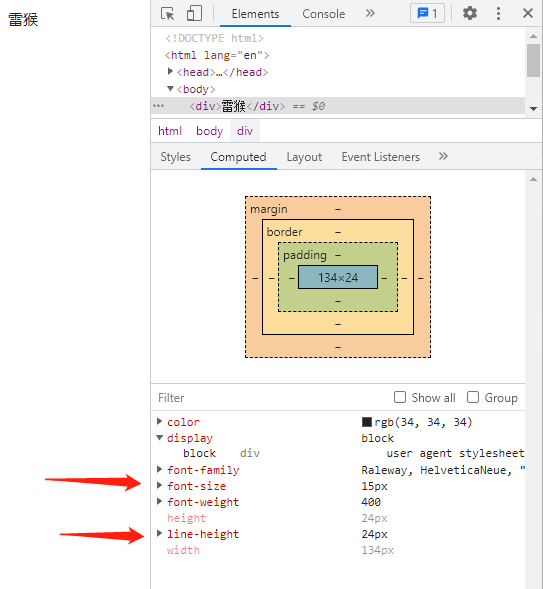
<div>雷猴</div>
源码分析
看看这部分的源码:
html {
  font-size: 62.5%;  /* 16px × 62.5% = 10px */
}


body {
  font-size: 1.5em;  /* 10px × 1.5 = 15px */
  line-height: 1.6;  /* 15px * 1.6 = 24px */
  font-weight: 400;  /* 字体粗细 */
  font-family: "Raleway", "HelveticaNeue", "Helvetica Neue", Helvetica, Arial, sans-serif;  /* 字体 */
  color: #222;  /* 文本颜色 */
}
浏览器的默认字号是 16px ,在 html 设置字号是 62.5%,那就是变成 10px 了。
在 body 设置 font-size: 1.5em; ,那么之后的内容默认都会继承 body 的,也就是普通的文本是 15px。
最后再设置 行高 、字体粗细 、字体 、文本颜色 。
排版 Typography<a name=”Typography”></a>
不需要使用特别的类名,这部分作用在 h1 ~ h6 标签中。使用了 rem 的方式设置字体大小,会受到 <html> 标签字体大小影响。
使用方法
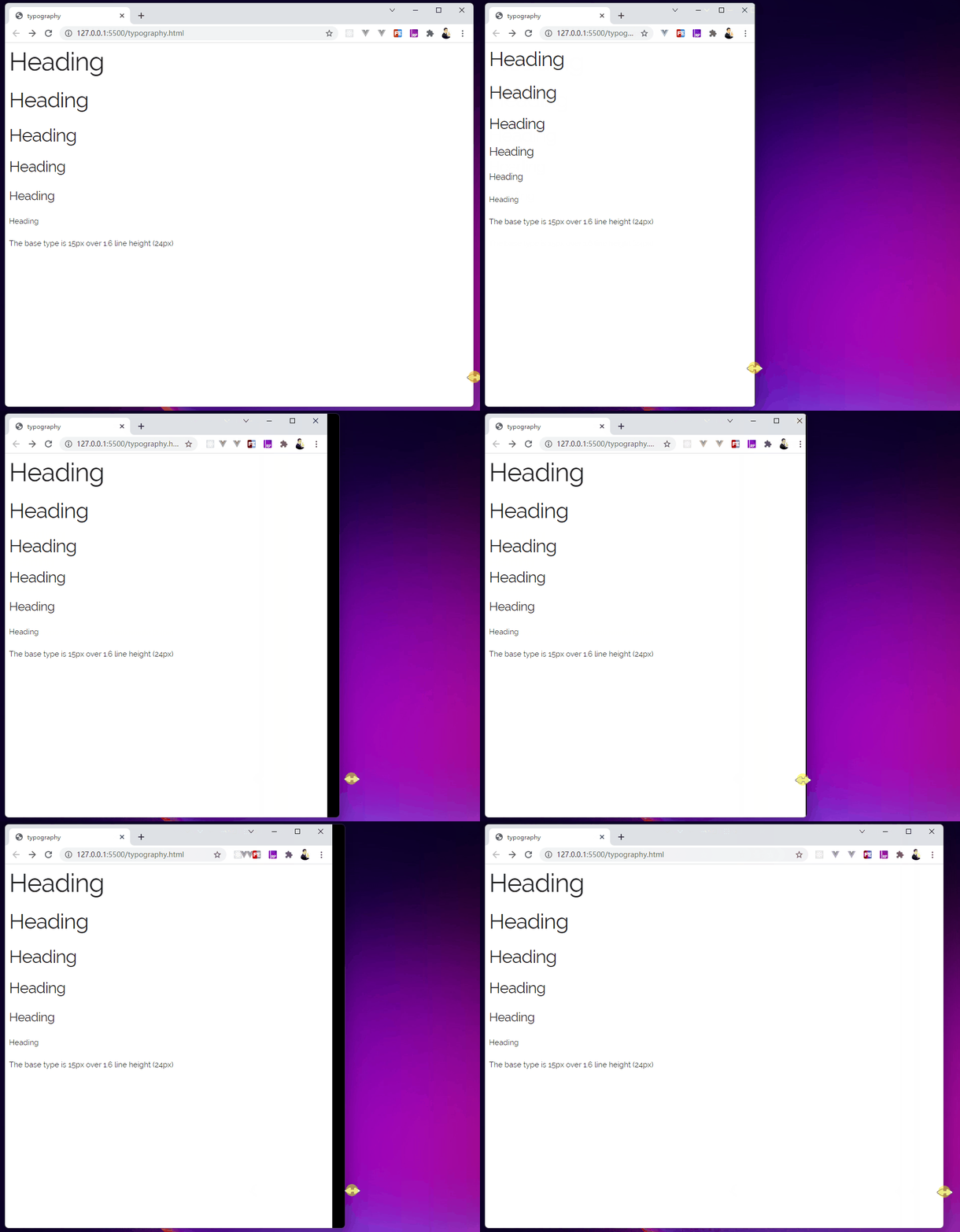
<h1>Heading</h1>
<h2>Heading</h2>
<h3>Heading</h3>
<h4>Heading</h4>
<h5>Heading</h5>
<h6>Heading</h6>


<p>The base type is 15px over 1.6 line height (24px)</p>
源码分析
h1, h2, h3, h4, h5, h6 {
  margin-top: 0;
  margin-bottom: 2rem;
  font-weight: 300; }
h1 { font-size: 4.0rem; line-height: 1.2;  letter-spacing: -.1rem;}
h2 { font-size: 3.6rem; line-height: 1.25; letter-spacing: -.1rem; }
h3 { font-size: 3.0rem; line-height: 1.3;  letter-spacing: -.1rem; }
h4 { font-size: 2.4rem; line-height: 1.35; letter-spacing: -.08rem; }
h5 { font-size: 1.8rem; line-height: 1.5;  letter-spacing: -.05rem; }
h6 { font-size: 1.5rem; line-height: 1.6;  letter-spacing: 0; }


/* Larger than phablet */
@media (min-width: 550px) {
  h1 { font-size: 5.0rem; }
  h2 { font-size: 4.2rem; }
  h3 { font-size: 3.6rem; }
  h4 { font-size: 3.0rem; }
  h5 { font-size: 2.4rem; }
  h6 { font-size: 1.5rem; }
}


p {
  margin-top: 0; }
这段源码其实没什么好解释的了,主要设置了 h1 ~ h6 的 外边距、字号、文字粗细、行高、字距,并且用 媒体查询 来重新定义不同尺寸的浏览器宽度显示出来的标题 字号 不同。
最后定义了段落 p 的上边距,这里的 p 的字号默认继承 body 里的设置,也就是 15px。
链接 Links<a name=”Links”></a>
使用方法

<a>Colored</a>
源码分析
a {
  color: #1EAEDB; }
a:hover {
  color: #0FA0CE; }
这里只定义了 a 的字体颜色,还有鼠标经过时的颜色。字号默认继承 body ,也就是 15px。


按钮 Buttons<a name=”Buttons”></a>
使用方法

<!-- 默认 -->
<a class="button" href="#">Anchor button</a>
<button>Button element</button>
<input type="submit" value="submit input">
<input type="button" value="button input">


<!-- primary类型 -->
<a class="button button-primary" href="#">Anchor button</a>
<button class="button-primary">Button element</button>
<input class="button-primary" type="submit" value="submit input">
<input class="button-primary" type="button" value="button input">
源码分析
/* 默认样式 */
.button,
button,
input[type="submit"],
input[type="reset"],
input[type="button"] {
  display: inline-block;  /* 行内块 */
  height: 38px;  /* 高度 */
  padding: 0 30px;  /* 内边距:上下0,左右30px */
  color: #555;  /* 字体颜色:灰色(有点深) */
  text-align: center;  /* 本文居中 */
  font-size: 11px;  /* 字号 */
  font-weight: 600;  /* 字体稍微加粗 */
  line-height: 38px;  /* 行高(和height一样,所以是垂直居中了) */
  letter-spacing: .1rem;  /* 字距 */
  text-transform: uppercase;  /* 字母变成全大写 */
  text-decoration: none;  /* 不需要文本修饰 */
  white-space: nowrap;  /* 不换行 */
  background-color: transparent;  /* 背景色:透明 */
  border-radius: 4px;  /* 圆角:4px */
  border: 1px solid #bbb;  /* 边框:1px,实线,浅灰 */
  cursor: pointer;  /* 鼠标指针样式 */
  box-sizing: border-box;  /* 盒模型规则 */
}


/* 鼠标经过、获得焦点 */
.button:hover,
button:hover,
input[type="submit"]:hover,
input[type="reset"]:hover,
input[type="button"]:hover,
.button:focus,
button:focus,
input[type="submit"]:focus,
input[type="reset"]:focus,
input[type="button"]:focus {
  color: #333;  /* 文字颜色比默认深一点点 */
  border-color: #888;  /* 边框颜色比默认深一点点 */
  outline: 0;  /* 轮廓:0 */
}


/* primary类型 */
.button.button-primary,
button.button-primary,
input[type="submit"].button-primary,
input[type="reset"].button-primary,
input[type="button"].button-primary {
  color: #FFF;  /* 字变白 */
  background-color: #33C3F0;  /* 背景色变蓝 */
  border-color: #33C3F0;  /* 边框颜色变蓝 */
}


/* 使用primary类型时:鼠标经过、获得焦点 */
.button.button-primary:hover,
button.button-primary:hover,
input[type="submit"].button-primary:hover,
input[type="reset"].button-primary:hover,
input[type="button"].button-primary:hover,
.button.button-primary:focus,
button.button-primary:focus,
input[type="submit"].button-primary:focus,
input[type="reset"].button-primary:focus,
input[type="button"].button-primary:focus {
  color: #FFF;  /* 文本白色 */
  background-color: #1EAEDB;  /* 背景色变深一点点 */
  border-color: #1EAEDB;  /* 边框颜色变深一点点 */
}
按钮的实现方式有很多种,比如 <button> 、<input type="submit" /> 等等,这里就不一一列举额了,skeleton 把这类情况都写好了,可以直接在源码中看到。
skeleton 提供了 2 中样式的按钮,一个是默认的(白底黑字),一个是 primary 的(蓝底白字)。
还有一些选中状态。
skeleton 的做法是先写好默认的,其他状态都在默认状态的基础上覆盖新的样式。
表单 Forms<a name=”Forms”></a>
使用方法

<form>
  <div class="row">
    <div class="six columns">
      <label for="exampleEmailInput">Your email</label>
      <input class="u-full-width" type="email" placeholder="test@mailbox.com" id="exampleEmailInput">
    </div>
    <div class="six columns">
      <label for="exampleRecipientInput">Reason for contacting</label>
      <select class="u-full-width" id="exampleRecipientInput">
        <option value="Option 1">Questions</option>
        <option value="Option 2">Admiration</option>
        <option value="Option 3">Can I get your number?</option>
      </select>
    </div>
  </div>
  <label for="exampleMessage">Message</label>
  <textarea class="u-full-width" placeholder="Hi Dave …" id="exampleMessage"></textarea>
  <label class="example-send-yourself-copy">
    <input type="checkbox">
    <span class="label-body">Send a copy to yourself</span>
  </label>
  <input class="button-primary" type="submit" value="Submit">
</form>
源码分析
/* 单行文本框、多行文本框、下来选择器 */
input[type="email"],
input[type="number"],
input[type="search"],
input[type="text"],
input[type="tel"],
input[type="url"],
input[type="password"],
textarea,
select {
  height: 38px;  /* 高度 */
  padding: 6px 10px;  /* 内边距:上下6px,左右10px */
  background-color: #fff;  /* 背景色:白色 */
  border: 1px solid #D1D1D1;  /* 边框:1px,实线,灰色 */
  border-radius: 4px;  /* 圆角:4px */
  box-shadow: none;  /* 投影:无 */
  box-sizing: border-box;  /* 盒模型 */
}


/* 针对单行和多行文本框的样式设置 */
input[type="email"],
input[type="number"],
input[type="search"],
input[type="text"],
input[type="tel"],
input[type="url"],
input[type="password"],
textarea {
  -webkit-appearance: none;
     -moz-appearance: none;
          appearance: none;  /* 外表 */
}


/* 多行文本框 */
textarea {
  min-height: 65px;  /* 最小高度是65px,会覆盖上面设置的height */
  padding-top: 6px;  /* 上内边距 */
  padding-bottom: 6px;  /* 下内边距 */
}


/* 单行文本框、多行文本框、下来选择器 获取焦点时 */
input[type="email"]:focus,
input[type="number"]:focus,
input[type="search"]:focus,
input[type="text"]:focus,
input[type="tel"]:focus,
input[type="url"]:focus,
input[type="password"]:focus,
textarea:focus,
select:focus {
  border: 1px solid #33C3F0;  /* 边框:1px,实线,蓝色 */
  outline: 0;  /* 轮廓:0 */
}


/* label(标签)
   legend(组合表单中的相关元素,legend 元素为 fieldset 元素定义标题) */
label,
legend {
  display: block;  /* 块状 */
  margin-bottom: .5rem;  /* 下外边距 */
  font-weight: 600;  /* 字体有点粗 */
}


/* fieldset(可将表单内的相关元素分组) */
fieldset {
  padding: 0;  /* 内边距 */
  border-width: 0;  /* 边框宽度 */
}


/* 多选和单选 */
input[type="checkbox"],
input[type="radio"] {
  display: inline;  /* 行内 */
}


/* label标签下的 .label-body,可看使用例子 */
label > .label-body {
  display: inline-block;  /* 行内 */
  margin-left: .5rem;  /* 左外边距:5px */
  font-weight: normal;  /* 字体粗细 */
}
列表 Lists<a name=”Lists”></a>
使用方法
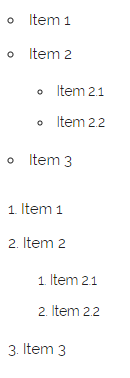
<ul>
  <li>Item 1</li>
  <li>
    Item 2
    <ul>
      <li>Item 2.1</li>
      <li>Item 2.2</li>
    </ul>
  </li>
  <li>Item 3</li>
</ul>


<ol>
  <li>Item 1</li>
  <li>
    Item 2
    <ol>
      <li>Item 2.1</li>
      <li>Item 2.2</li>
    </ol>
  </li>
  <li>Item 3</li>
</ol>
源码分析
/* 无序列表 */
ul {
  list-style: circle inside;  /* 标记样式:圆,内侧 */
}


/* 有序列表 */
ol {
  list-style: decimal inside;  /* 标记样式:十进制,内侧 */
}


ol, ul {
  padding-left: 0;  /* 左侧内边距:0 */
  margin-top: 0;  /* 左侧外边距:0 */
}


/* 嵌套列表 */
ul ul,
ul ol,
ol ol,
ol ul {
  margin: 1.5rem 0 1.5rem 3rem;  /* 外边距 */
  font-size: 90%;  /* 字号 */
}


/* 列表项 */
li {
  margin-bottom: 1rem;  /* 下外边距 */
}
代码 Code<a name=”Code”></a>
使用方法

<pre>
<code>.some-class {
  background-color: red;
}</code>
</pre>
源码分析
code {
  padding: .2rem .5rem;  /* 内边距 */
  margin: 0 .2rem;  /* 外边距 */
  font-size: 90%;  /* 字号 */
  white-space: nowrap;  /* 不换行 */
  background: #F1F1F1;  /* 背景色:超级浅的灰色 */
  border: 1px solid #E1E1E1;  /* 边框:1px,实线,灰色 */
  border-radius: 4px;  /* 圆角:4px */
}


pre > code {
  display: block;  /* 块状 */
  padding: 1rem 1.5rem;  /* 内边距 */
  white-space: pre;  /* 空白会被浏览器保留。 */
}
code 和 pre 是 HTML 原生标签。
表格 Tables<a name=”Tables”></a>
使用方法

<table>
  <thead>
    <tr>
      <th>Name</th>
      <th>Age</th>
      <th>Sex</th>
      <th>Location</th>
    </tr>
  </thead>
  <tbody>
    <tr>
      <td>Dave Gamache</td>
      <td>26</td>
      <td>Male</td>
      <td>San Francisco</td>
    </tr>
    <tr>
      <td>Dwayne Johnson</td>
      <td>42</td>
      <td>Male</td>
      <td>Hayward</td>
    </tr>
  </tbody>
</table>
源码分析
/* 表头的列 和 普通列 */
th,
td {
  padding: 12px 15px;  /* 内边距 */
  text-align: left;  /* 文本左对齐 */
  border-bottom: 1px solid #E1E1E1;  /* 底边框 */
}


/* 第一个表头的列 和 每行第一个普通列 */
th:first-child,
td:first-child {
  padding-left: 0;  /* 左内边距 */
}


/* 最后一个表头的列 和 每行最后一个普通列 */
th:last-child,
td:last-child {
  padding-right: 0;  /* 右内边距 */
}
没想到表格的 css 样式这么简单吧哈哈哈哈~
间隔 Spacing<a name=”Spacing”></a>
源码分析
button,
.button {
  margin-bottom: 1rem;
}


input,
textarea,
select,
fieldset {
  margin-bottom: 1.5rem;
}


pre,
blockquote,
dl,
figure,
table,
p,
ul,
ol,
form {
  margin-bottom: 2.5rem;
}
这部分主要定义常用的标签和类的底部外边距,太简单,不一一细讲了。
工具集 Utilities<a name=”Utilities”></a>
源码分析
.u-full-width {
  width: 100%;
  box-sizing: border-box;
}


.u-max-full-width {
  max-width: 100%;
  box-sizing: border-box;
}


.u-pull-right {
  float: right;
}


.u-pull-left {
  float: left;
}
这部分源码太简单了,不讲了~
-
.u-full-width:宽度满屏 -
.u-max-full-width:最大宽度是满屏 -
.u-pull-right:右浮动 -
.u-pull-left:左浮动
分割线 Hr<a name=”Hr”></a>
使用方法
<hr />
源码分析
hr {
  margin-top: 3rem;
  margin-bottom: 3.5rem;
  border-width: 0;
  border-top: 1px solid #E1E1E1;
}
-
上下设置了外边距
-
清除掉所有 border
-
最后再设置回顶部边框为 1px,实线,灰色
清除浮动 Clearing<a name=”Clearing”></a>
源码分析
.container:after,
.row:after,
.u-cf {
  content: "";
  display: table;
  clear: both;
}
容器 和 行 都设置了清楚浮动。
.u-cf 是专门清楚浮动的。
清楚浮动的做法在很多基础的 css 教程有讲,这里不再啰嗦了。
媒体查询 Media Queries<a name=”MediaQueries”></a>
源码分析
@media (min-width: 400px) {}


@media (min-width: 550px) {}


@media (min-width: 750px) {}


@media (min-width: 1000px) {}


@media (min-width: 1200px) {}
这部分的源码,是预留给开发者自己写的。
如果开发者需要自己重新定义某些元素的样式,根据不同的窗口宽度来定义,可以在此编写。

本文由 TecHug 分享,英文原文及文中图片来自 InfoQ。
你也许感兴趣的:
- 用 ::target-text 轻松为文本片段添加样式
- CSS 相对颜色语法
- 打造美观网站所需的最少 CSS
- CSS 拥有42种单位
- CSS锚点(Anchor)定位详细说明文档
- CSS border-image 的神奇用法
- CSS 角形状(corner-shape)能实现哪些效果?
- 可以用 CSS 实现这些,不再需要 JavaScript
- 苹果公司拥有一个私有CSS属性,可为网页内容添加液态玻璃特效
- 用 CSS random() 掷骰子

你对本文的反应是: